



How to Encrypt Zoho Mail in 2026 (End-to-End, No MX Changes)
-

-
 Jan 31, 2026
 -
 6 min read
Share on:


Zoho Mail is a solid choice: affordable, clean, and refreshingly light on the “enterprise email tax.”
The only catch is that Zoho’s built-in security is mostly about protecting delivery, not giving you true end-to-end encrypted email. If you want real encrypted email (including attachments and replies) without switching providers or changing anything DNS-related, the simplest approach is to add an encryption layer on top of Zoho using an IMAP-compatible app like SecureMyEmail.
You connect your Zoho mailbox, and you can be sending encrypted emails in minutes. No MX changes required.
Quick Summary
- You can encrypt Zoho Mail emails without migrating away from Zoho.
- Setup uses IMAP, so your email address stays the same.
- If you use 2FA with Zoho, you may need one extra Zoho sign-in step (details below).
- SecureMyEmail encrypts messages end-to-end, including replies and attachments.
- For HIPAA use, you’ll want a BAA on a paid plan (we provide it).
The awkward part: “secure email” isn’t the same as “encrypted email”
If you need real email encryption (HIPAA, legal, finance, HR, or “please don’t leak this PDF to the universe”), Zoho’s default setup is not end-to-end encrypted.
Zoho’s pages can sometimes make it sound like the problem is already solved. And to be fair, Zoho does a bunch of important baseline security:
- TLS (Transport Layer Security) in transit (protects the connection while mail moves as long as it's supported and configured correctly on recipient's mail server)
- Server-side encryption at rest (protecting stored mail on their servers)
That’s good. It’s necessary. It’s also what basically every modern email provider does.
Why that still isn’t “encrypted email” (in the way people mean it)
With baseline email security, the message content is safer, but could be better because things can happen if you are not encrypting email end-to-end:
- compromised inboxes / stolen sessions
- TLS not supported or misconfigured on recipient's email server
- TLS compromised by a "downgrade attack"
- malicious forwarding rules
- over-permissioned admins and shared mailboxes
- backups, archives, retention, and eDiscovery systems
- and the timeless classic: “oops, wrong recipient”
So yes: it’s “encrypted” in the broadest marketing sense. But it’s not only you and the recipient can read it type of encryption.Read why you need email encryption in 2026.
About those add-ons (S/MIME + OpenPGP)
Zoho will also mention add-ons like S/MIME and OpenPGP. These can work, but they’re… let’s call them vintage. They also typically come with:
- certificates/keys to generate and distribute
- renewals and expirations
- the inconvenient reality that every person you want to send encrypted email to must also join your 1990s-era encrypted email machine. (They won’t.)
If they do join, you're in store for some fun:
- key exchange and certificate/PGP imports
- “which app are you using?” / “where’s your key?”
- expirations, renewals, and “it worked last month” mysteries
- bounces, mismatches, and the classic “why can’t Bob open this?”
Which means you’re now doing IT support for people who didn’t ask for this.
The simple fix
The good news: you can encrypt Zoho Mail without 1990's technology, without switching email providers, without changing your email address, and without touching your MX records.
You just add SecureMyEmail alongside Zoho, and you’re sending encrypted email in minutes.
And, it’s super affordable: $2.50/user/month billed annually or $3.99 month-to-month — which is about what some enterprise vendors charge for a single meeting invite.
How to encrypt Zoho emails step by step with SecureMyEmail
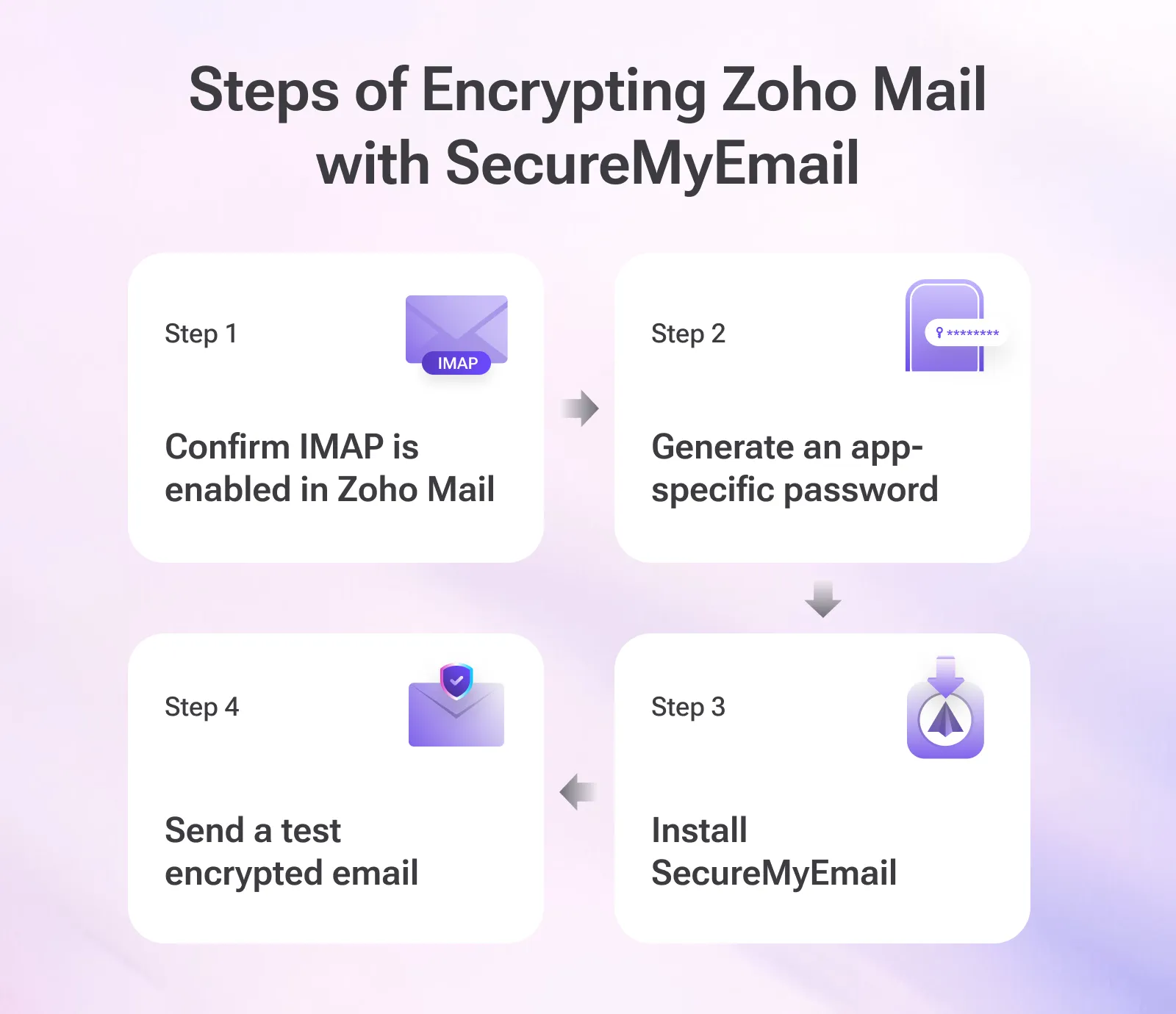
Step 1: Confirm IMAP is enabled in Zoho Mail
Zoho supports IMAP access, but it can be toggled per account (and sometimes at the org level). If something doesn’t connect later, this is one of the first places to check.
Step 2: Generate an app-specific password
If 2FA/TFA is enabled, Zoho often requires an application-specific password.
Zoho’s help doc (with screenshots) is here: Zoho app-specific password guide.
High level flow:
- Go to your Zoho account security settings.
- Generate a new App Password for the app/device you’re connecting.
- Copy it and save it somewhere safe.
This is normal. Slightly annoying. But normal.
You will use that app-specific password inside SecureMyEmail instead of your normal Zoho mail password.
Zoho won’t show it again after you generate it, so copy it somewhere safe.
Step 3: Install SecureMyEmail
Download SecureMyEmail for your device (Mac, Windows, iOS, Android) and set it up.
Everyone starts on the free trial — no payment info required, and no "quick call" with a sales guy who mysteriously has four time slots available, all at 9:00 a.m.
Here’s the smoothest way to do it:
- If you’re a solo user: download the app, set it up in minutes, and you can purchase right inside the software (Settings → Subscription) whenever you’re ready.
- If you’re a business with multiple users: have a few teammates install and test individually on trial first if you like. When you’re ready for unified invoicing, central billing, admin help, or a clean roll-out, email sales@securemyemail.com and we’ll consolidate everyone into a business account.
Step 4: Send a test encrypted email
Send yourself a message to a personal Gmail address (or any external address) to see what an outside recipient will see.
If you're sending to another SecureMyEmail user (the software will determine this automatically) they will view the decrypted email in their SecureMyEmail apps.
If you’re looking for provider-specific context too, see: encrypt Gmail and encrypt Outlook.
The Recipient Experience (and why this matters)
This is where most “secure email” tools go off the rails and punish your recipient for the crime of being alive. And, guess who they will blame for it?
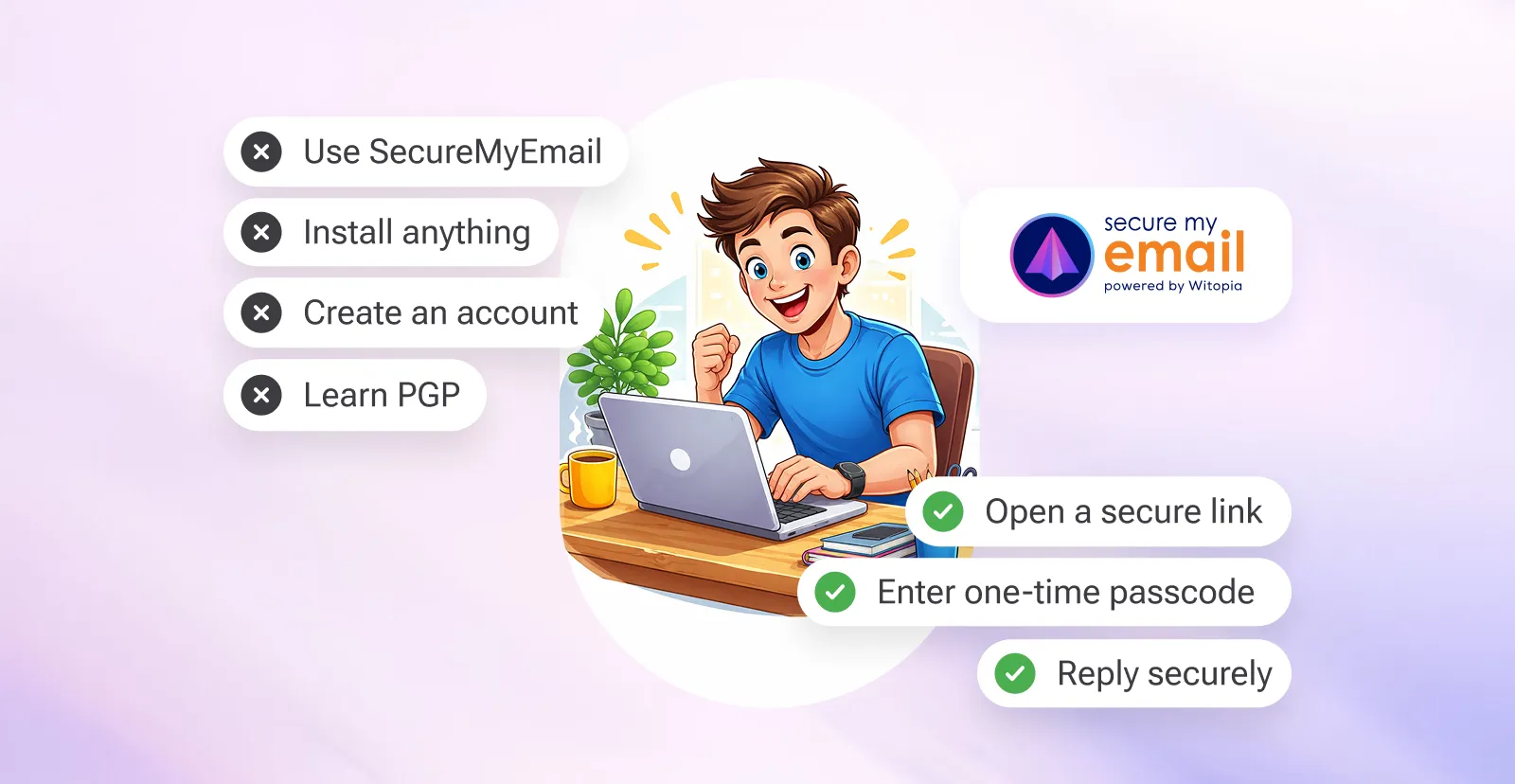
With SecureMyEmail, recipients don’t need to:
- Use SecureMyEmail
- install anything at all
- create an account, or
- learn what PGP or S/MIME stands for (or why their “public key” doesn’t work today).
Typically, recipients who don't use SecureMyEmail themselves, simply:
- open a secure link,
- enter a one-time passcode delivered via a second email (only once per thread), and
- read and reply securely. Attachments too!
It’s basically the least annoying “secure message” experience that still takes security seriously.
HIPAA note (for clinics, pharmacies, dentists, and anyone handling PHI)
HIPAA compliance is broader than just encryption. It’s also about policies, controls, and good operational habits. But for email, the big pieces are: strong encryption plus a Business Associate Agreement (BAA). If you’re in that world, you may also want our broader guide on HIPAA-compliant encrypted email. We’ve got you covered on the encryption side, and we provide a BAA on paid plans. If you need one, email sales@securemyemail.com and we’ll send it over.
TL;DR
If you use Zoho Mail and want encrypted email without a platform migration, painful setup, or expensive enterprise add-ons:
- Keep Zoho
- Use SecureMyEmail
- Connect Zoho
- Start sending encrypted email in minutes
If you’re still comparison-shopping (or doom-scrolling pricing pages), you might also like our hub post: Best encrypted email for business (with pricing).
Troubleshooting (because stuff happens)
Most setups work on the first try. If you hit a snag, it’s usually one of these:
- “Connection to mail provider failed.” Re-check your Zoho IMAP settings, and if you have 2FA enabled, make sure you used the app-specific password (not your normal Zoho password).
- VPN / firewall / antivirus interference. A VPN, Windows Defender firewall settings, or third-party antivirus can occasionally block mail connections. Try temporarily disabling the VPN, switching networks, or allowing SecureMyEmail through your firewall/security tools.
- Recipient can’t open the secure message. Have them check spam/junk for the passcode email.
- Corporate environments: Occasionally an IT team needs to whitelist emails from messages@securemyemail.com (or the securemyemail.com domain) so passcodes and notifications don’t get quarantined. This isn’t common, but it’s not unheard of. Once whitelisted, it should work seamlessly ever after.
Need some help? Use our support page or email us and we’ll help get it sorted.
Frequently Asked Questions
Does Zoho Mail have end-to-end encryption by default?
No. Zoho can secure the connection (TLS) and protect stored mail on their servers, but that’s not the same as end-to-end encryption.
TLS is generally strong and it’s an important baseline, but it mainly protects the connection while mail moves between systems. Once the email lands in a mailbox, it’s back to the real-world risks: compromised accounts, malicious forwarding rules, admin access, retention/eDiscovery, backups, and plain old “oops, wrong recipient.”
Zoho supports S/MIME or PGP, but those are typically very difficult to set up and require each recipient to manage keys and/or certificates. Basically, it turns into an IT project and a support ticket generator.
Why does Zoho require an app-specific password?
If 2FA/TFA is enabled, Zoho requires a separate password for access so external apps can connect without using your primary account password. Apple iCloud email does the same thing.
Do I need to change MX records or migrate my domain away from Zoho?
No. You keep Zoho Mail exactly as-is. SecureMyEmail works alongside it.
Do recipients need to install anything?
No accounts, no installs. Typically they open a secure link and enter a one-time passcode delivered via a second email (just once per conversation/thread).
Can I use this for HIPAA?
Yes. SecureMyEmail provides a BAA for paid accounts.
What if I have multiple Zoho addresses?
Teams can start individually on trial and then consolidate into a business billing setup. Just email sales@securemyemail.com